> ## Documentation Index
> Fetch the complete documentation index at: https://runway-5055a12e-mintlify-formula-column-documentation-75200.mintlify.site/llms.txt
> Use this file to discover all available pages before exploring further.
# Driver grouping
> Driver grouping in models allows you to organize related drivers into collapsible sections for better structure and readability. You can also reference grouped drivers elsewhere in Runway.
## Why use drivers groups?
Grouping drivers helps you keep models organized by creating collapsible sections.
1. Press `Shift` and click a group’s caret to **collapse all** groups.
2. Press `Option` and click a group’s caret to **expand all** groups.
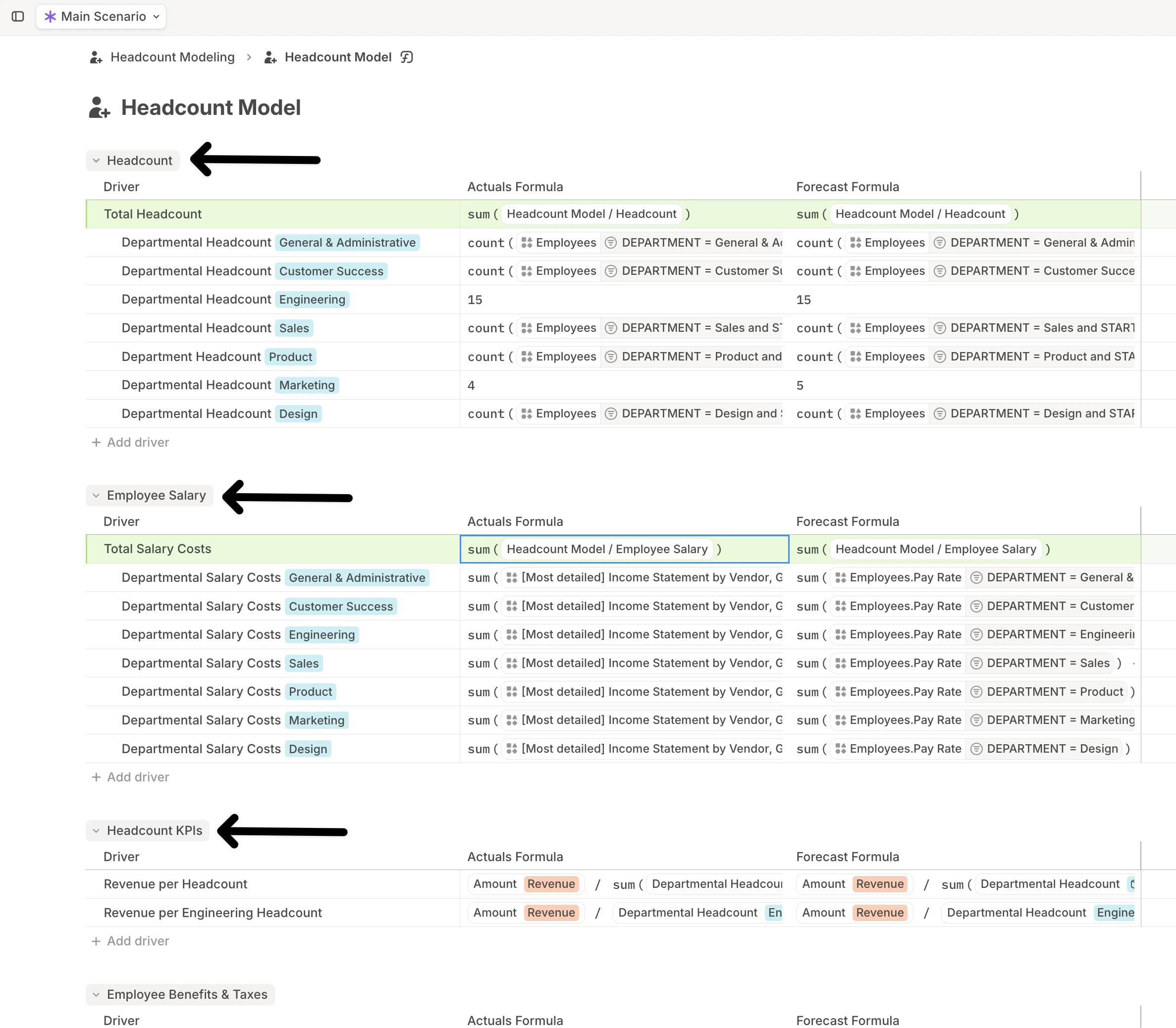 In addition to improving organization and readability, groups also make it easier to find and reuse drivers. When adding drivers to a block, you can **search by group name** and include all or a subset of drivers from that group.
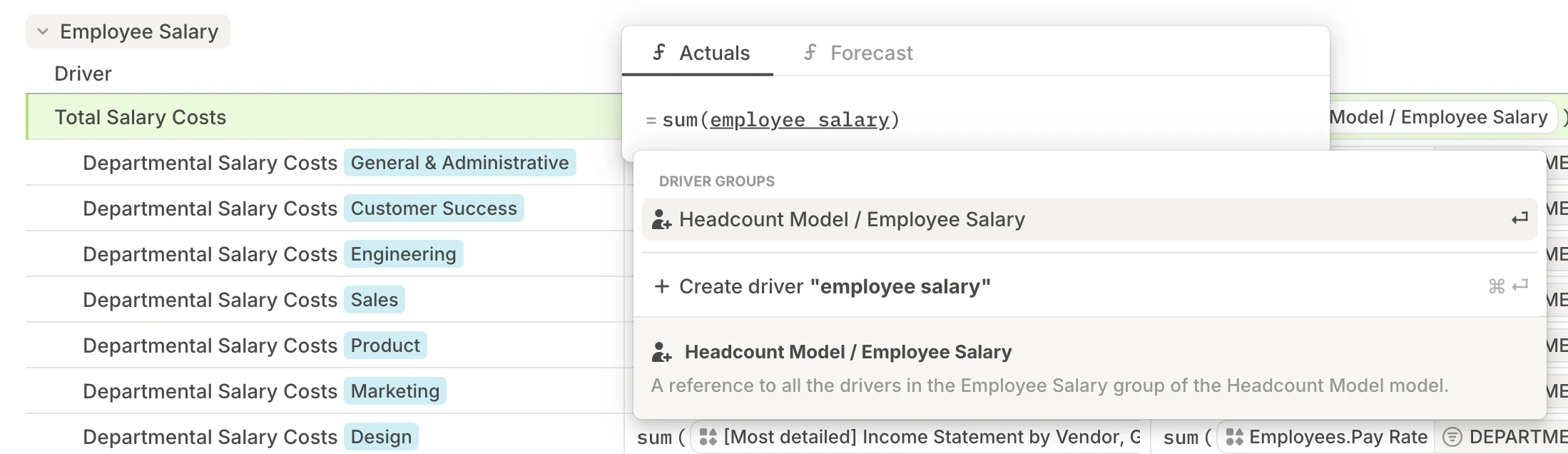
  You can also **reference an entire driver group in formulas**, instead of selecting each driver individually.
 ## How to group drivers?
There are a couple of ways to create groups in a model:
1. **Select and group:**
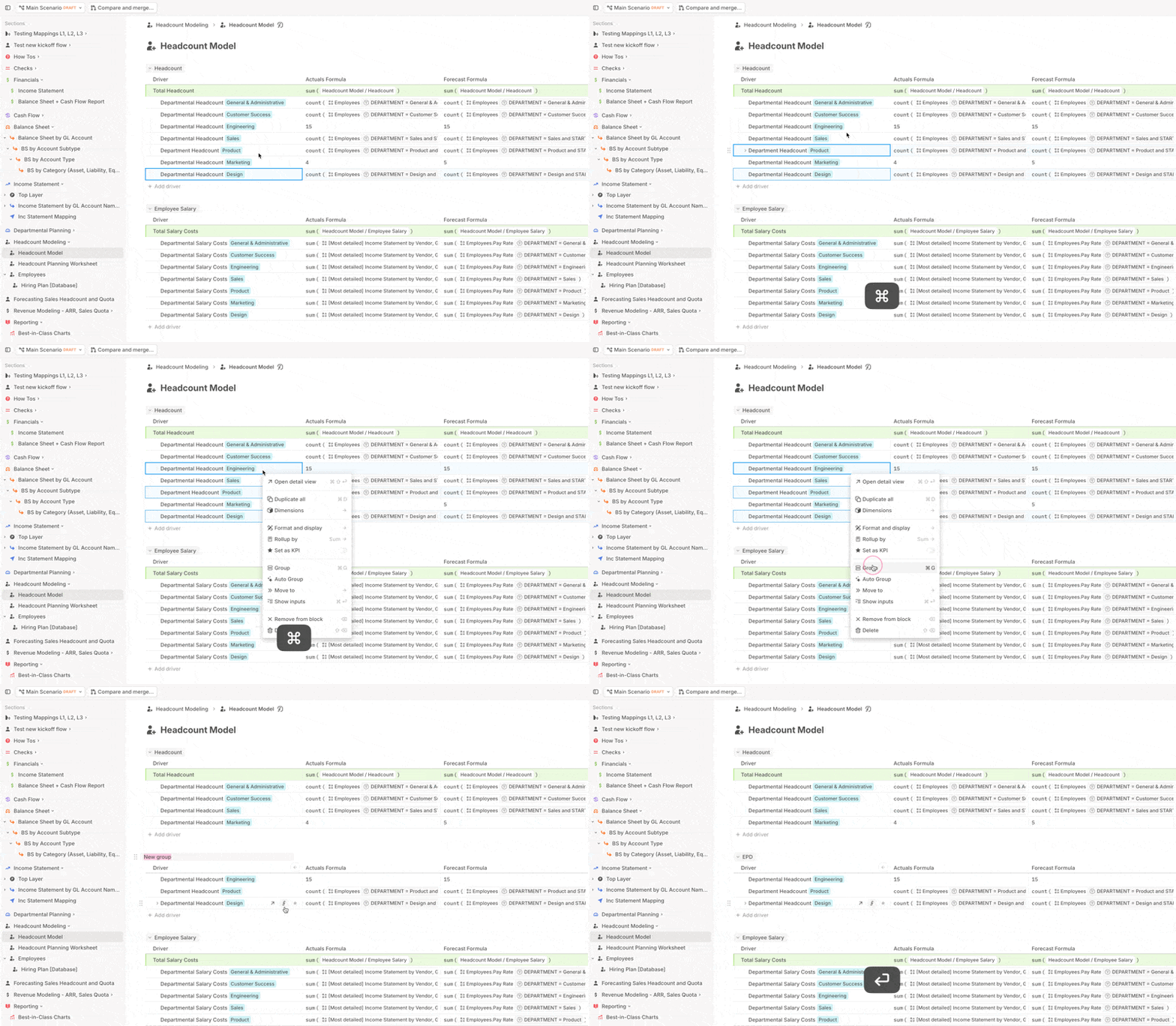
Select the drivers you'd like to group, then right-click and choose **Group** — or press `Cmd` / `Ctrl` + `G`. A new group will be created with the selected drivers. Give the group a descriptive name.
## How to group drivers?
There are a couple of ways to create groups in a model:
1. **Select and group:**
Select the drivers you'd like to group, then right-click and choose **Group** — or press `Cmd` / `Ctrl` + `G`. A new group will be created with the selected drivers. Give the group a descriptive name.
 2. **Create group first:**\
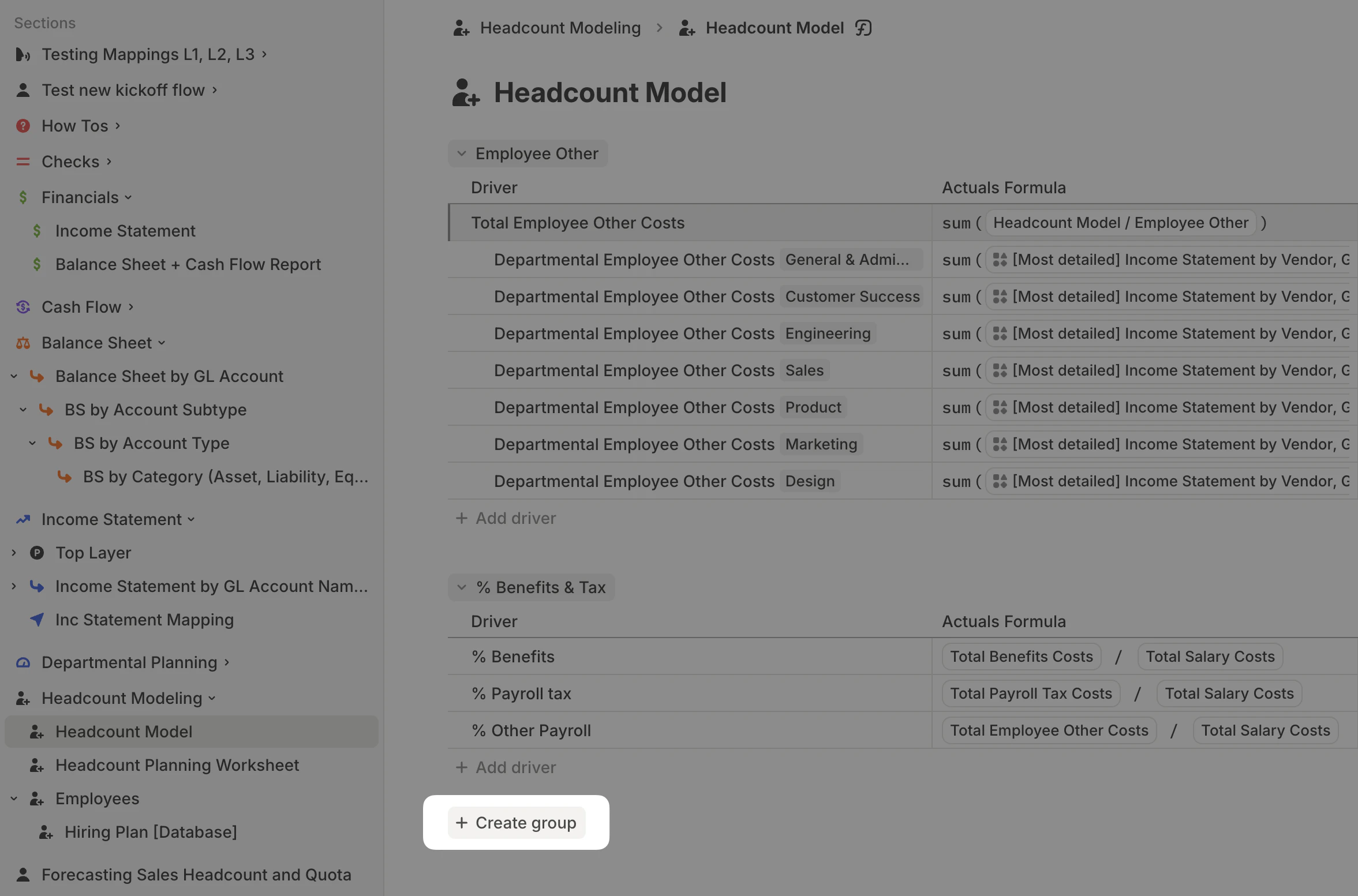
Scroll to the bottom of the model and click **+ Create group**. Give the group a name, then drag the relevant drivers into the group one by one or in bulk.\\
2. **Create group first:**\
Scroll to the bottom of the model and click **+ Create group**. Give the group a name, then drag the relevant drivers into the group one by one or in bulk.\\
 Once your groups are set up, you can **drag and drop** groups to reorder.