> ## Documentation Index
> Fetch the complete documentation index at: https://runway-5055a12e-mintlify-formula-column-documentation-75200.mintlify.site/llms.txt
> Use this file to discover all available pages before exploring further.
# Text & media block
> In addition to chart blocks, driver table blocks, and database blocks, which let you bring different parts of your model together on a single page, you can also use text, image, and video blocks to add context and strengthen the narrative of your page.
## Text block
Text blocks are **simple and intuitive**—just start typing in any blank space. That’s it!
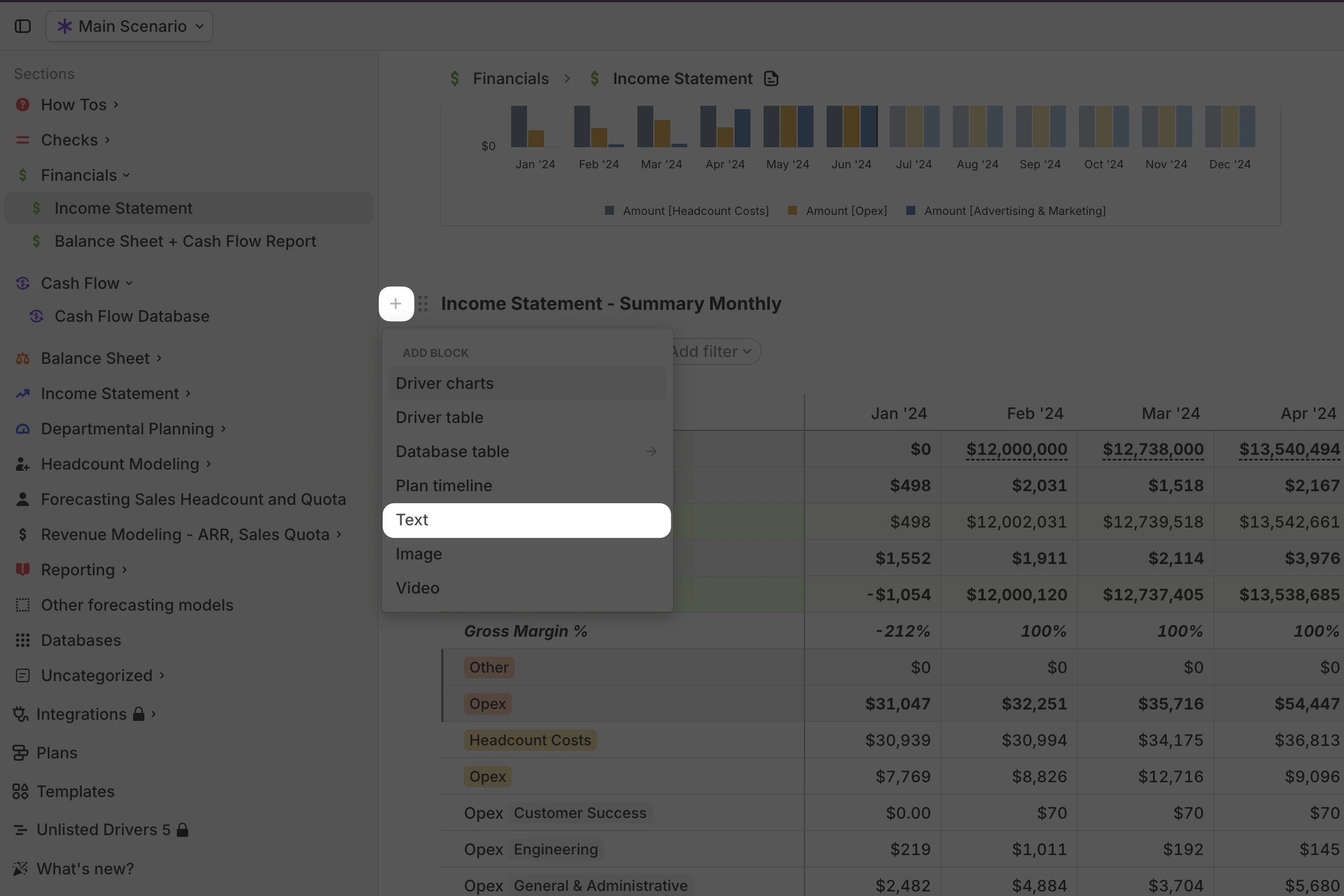
To insert a new text block **between existing blocks**, click the `+` button on the left of the top block where you want to add text, then select **Text**.
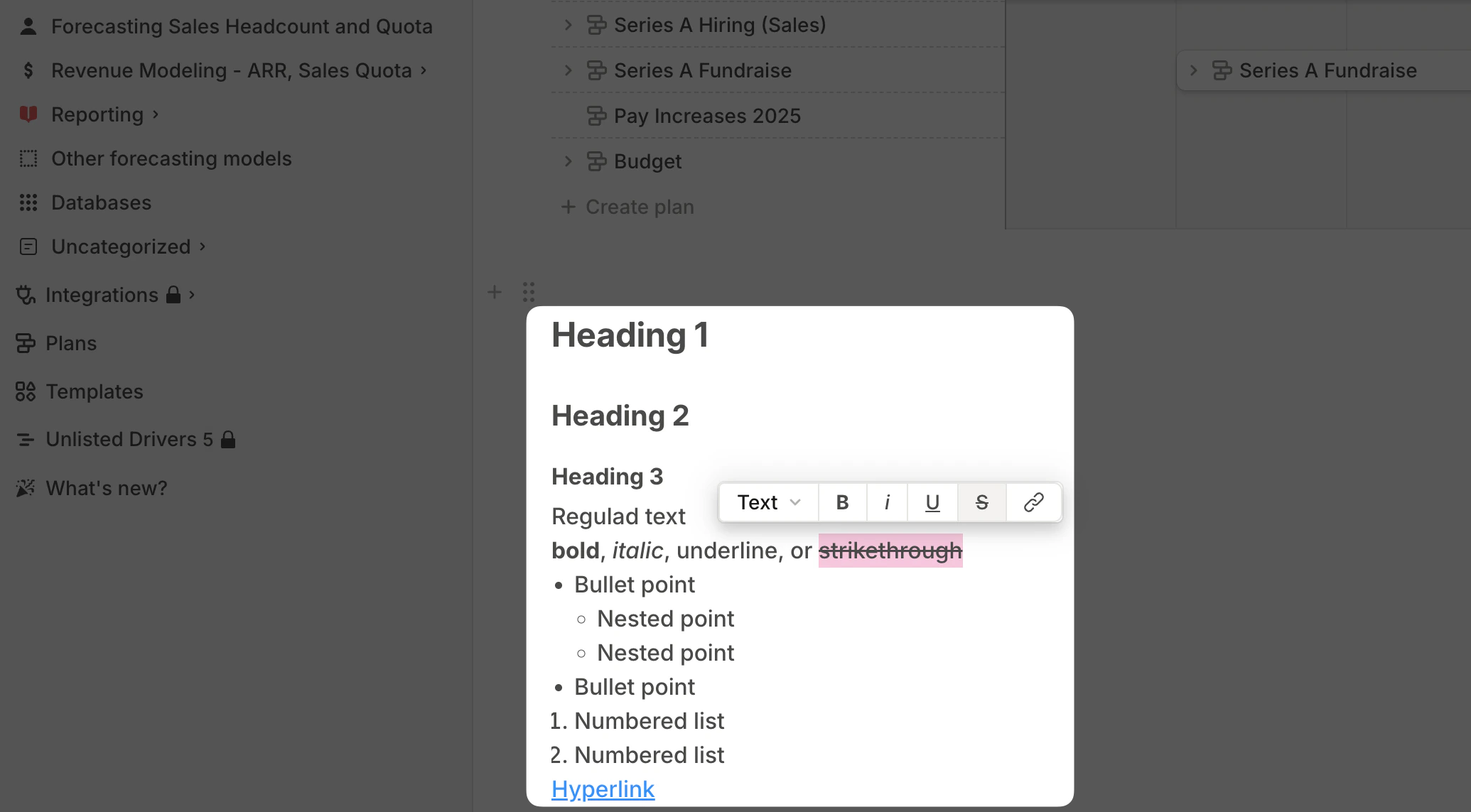
 You can format your text in various ways:
* **Headings** → Choose from `H1`, `H2`, or `H3`:
* Use the toolbar or **markdown shortcuts** (`#` for H1, `##` for H2, `###` for H3).
* **Text styles** → Apply **bold**, *italic*, underline, or ~~strikethrough~~.
* **Lists** → Create **bullet points** or **numbered lists**.
* **Hyperlinks** → Add links to external content for additional context.
You can format your text in various ways:
* **Headings** → Choose from `H1`, `H2`, or `H3`:
* Use the toolbar or **markdown shortcuts** (`#` for H1, `##` for H2, `###` for H3).
* **Text styles** → Apply **bold**, *italic*, underline, or ~~strikethrough~~.
* **Lists** → Create **bullet points** or **numbered lists**.
* **Hyperlinks** → Add links to external content for additional context.
 ## Image block
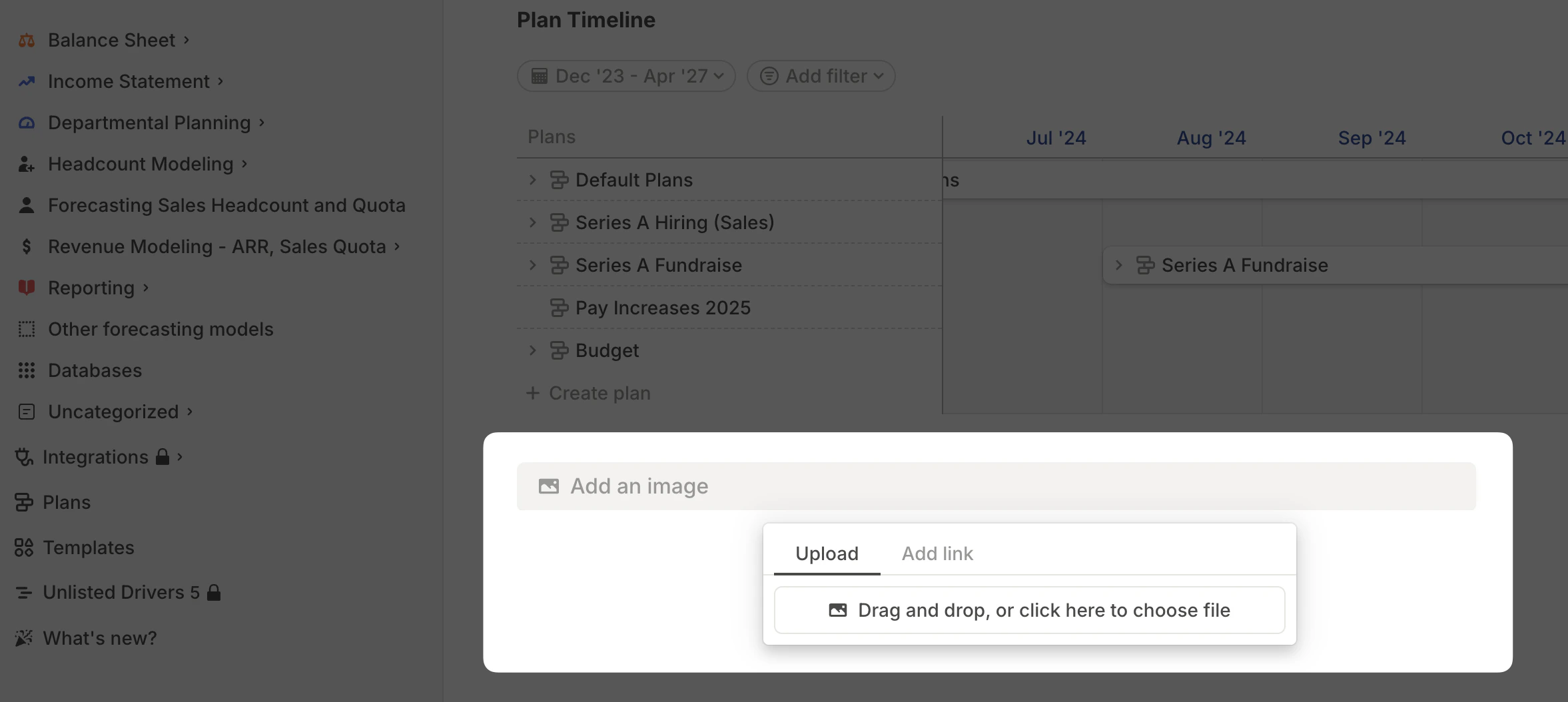
To add visuals from outside Runway, use an image block. Simply type `/` to open the block menu and select **Image**.
You can then:
* **Upload an image** from your computer.
* **Embed an image URL** to display an external image.
## Image block
To add visuals from outside Runway, use an image block. Simply type `/` to open the block menu and select **Image**.
You can then:
* **Upload an image** from your computer.
* **Embed an image URL** to display an external image.
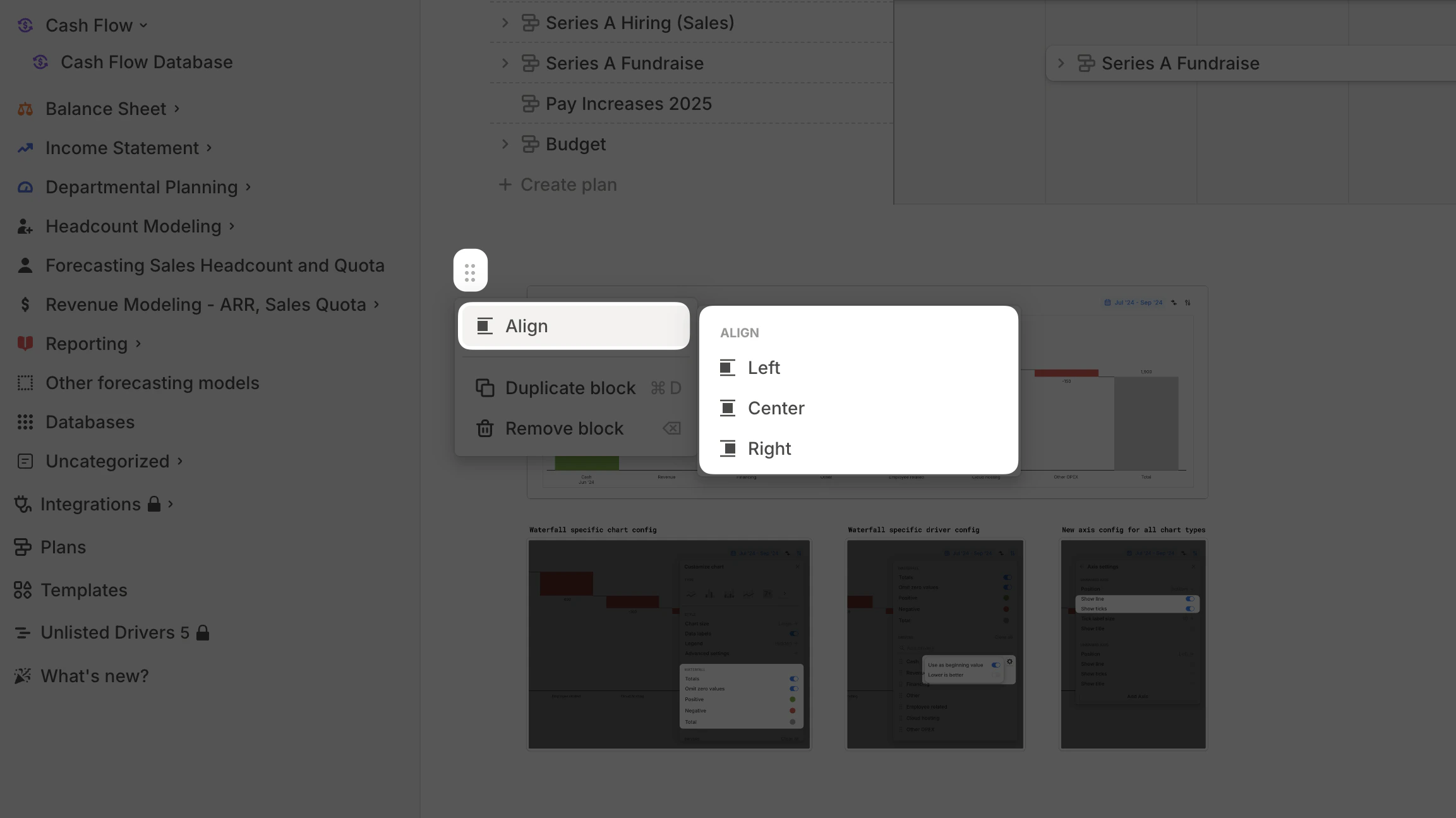
 Once the image is uploaded, you can **resize** it and adjust its **alignment** to **left, center, or right** for better positioning on the page.
 ## Video block
Video blocks work similarly to image blocks. Select **Video** from the block creation menu, then:
* **Upload a video file** from your computer.
* **Embed a link** from **Loom, YouTube, or Vimeo.**
## Video block
Video blocks work similarly to image blocks. Select **Video** from the block creation menu, then:
* **Upload a video file** from your computer.
* **Embed a link** from **Loom, YouTube, or Vimeo.**