

- Quick-start connection – A fast and simple setup.
- SQL-powered integration via Fivetran (Recommended) – For advanced data customization.
Setting up Quickbooks Online via Fivetran
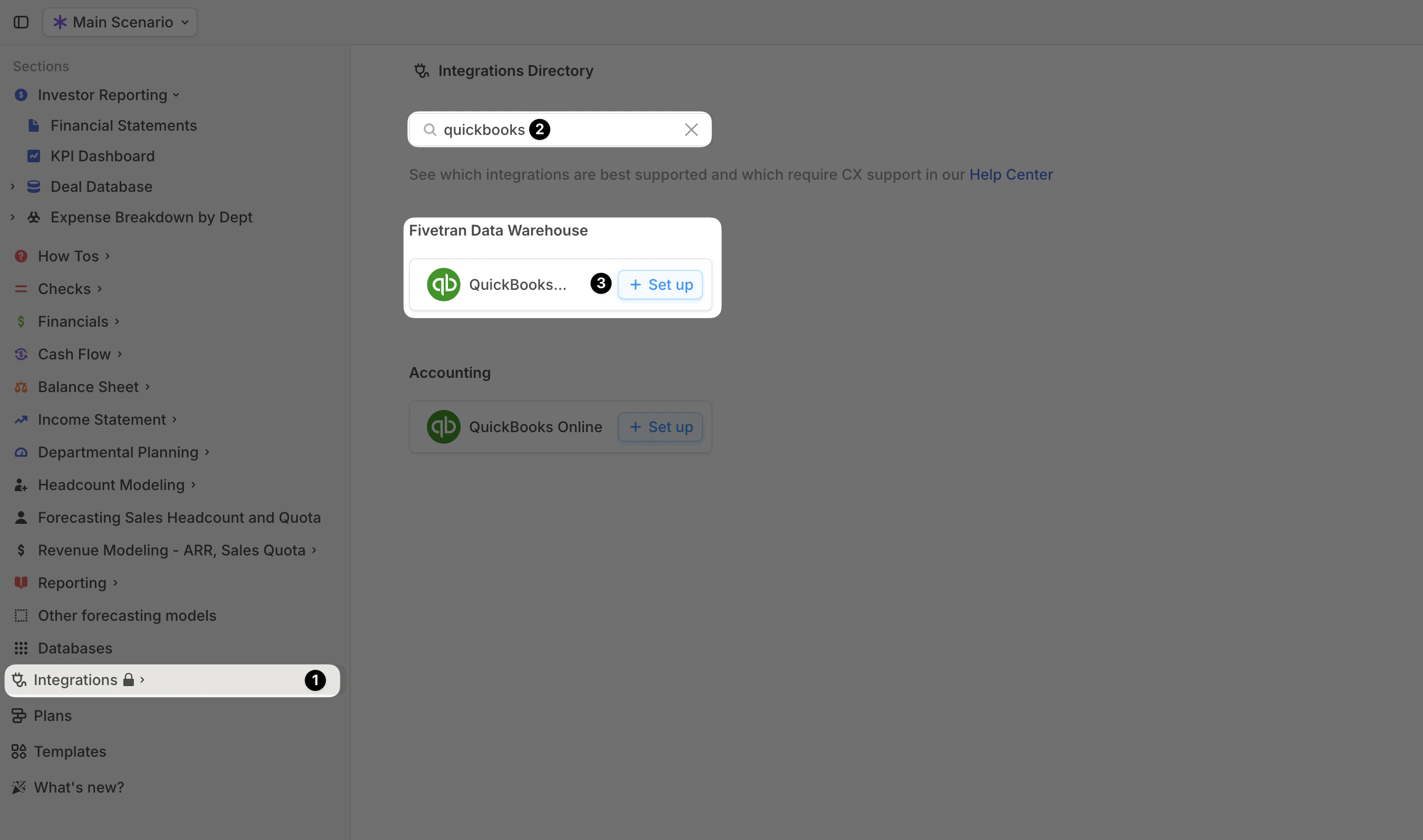
Connecting the integration
- Open your Runway instance.
- In the left sidebar, hover over Integrations and click the + button to open the Integrations Directory.
- Search for QuickBooks and click + Set up under the Fivetran option.
- For the Schema Name:
- If connecting a single QuickBooks instance, leave it as
quickbooks. - If connecting multiple QuickBooks instances, update the Schema Name with a unique identifier (e.g.,
quickbooks_us,quickbooks_ltd).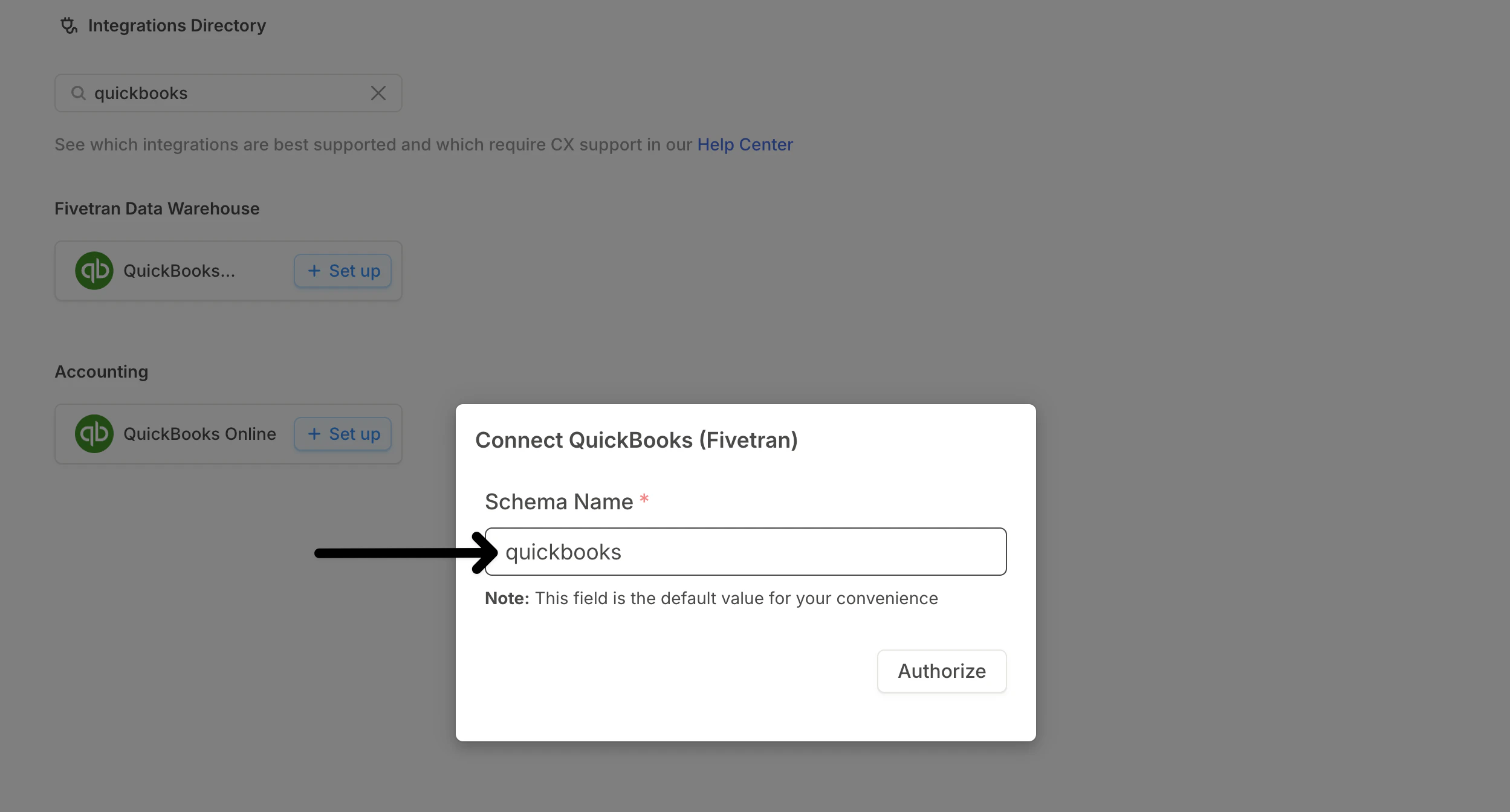
- If connecting a single QuickBooks instance, leave it as
- Click Authorize to be redirected to Fivetran to complete the connection.
- Follow Fivetran’s setup guide to finish configuring the integration.
- Click Save & Test to begin syncing your data. You’ll be redirected back to Runway.
Syncing your data into Runway
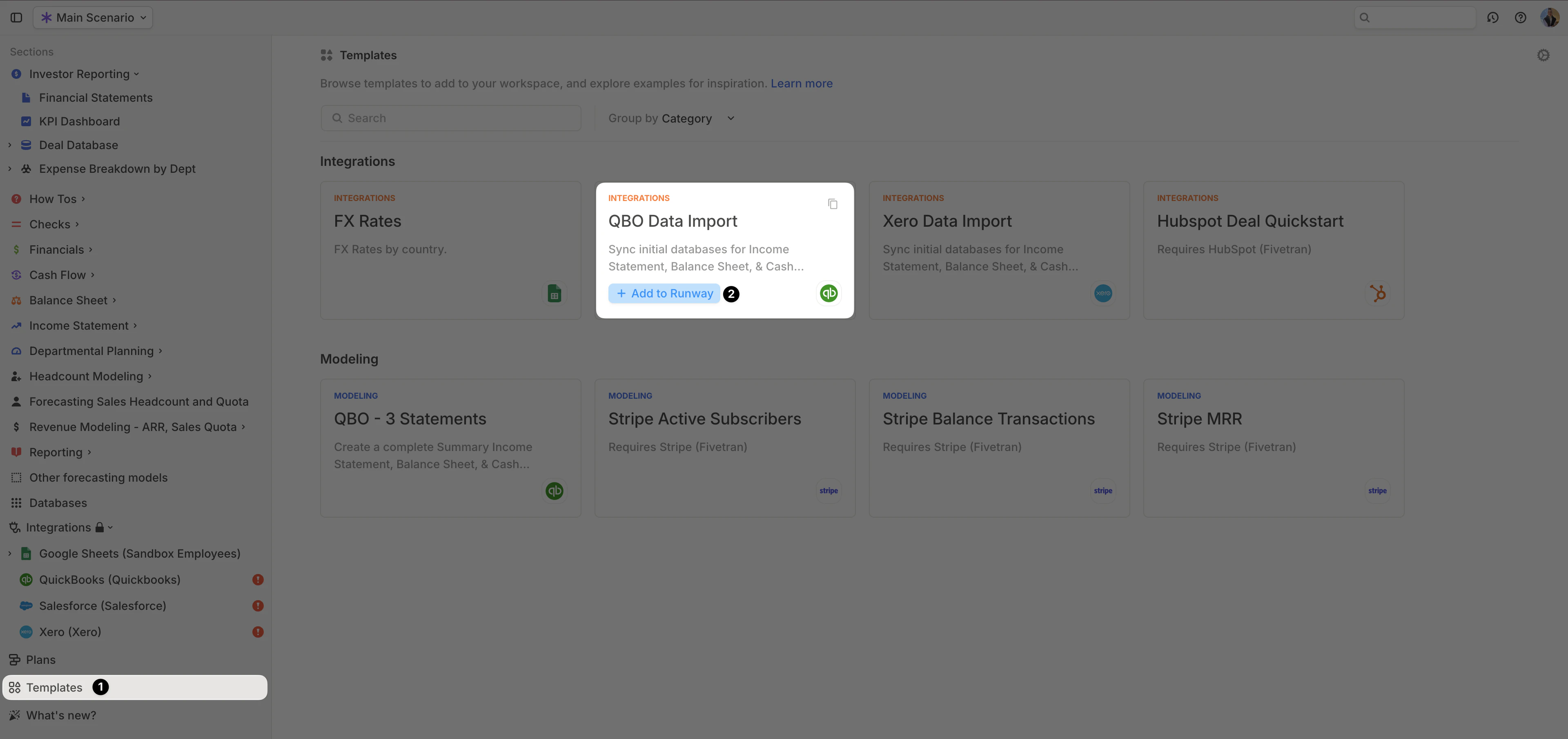
Runway provides integration templates to help you quickly import Income Statement, Balance Sheet, and Cash Flow data from QuickBooks Online, even with this SQL-powered integration.- In the sidebar, navigate to Templates.
- Search for QBO Data Import.
- Click + Add to Runway on the template card.
- The template will:
- Automatically add Income Statement and Combined Balance Sheet + Cash Flow queries to the QuickBooks integration.
- Create the following databases in Runway:
- IS Data (Income Statement)
- BS Data (Balance Sheet)
- CF Data (Cash Flow)
Supported data from Quickbooks Online via Fivetran
When using the QBO Data Import integration template, the following financial data becomes available in Runway: Income statement data
Combined balance sheet & cash flow data
The QBO Data Import integration template includes the most commonly used
financial data, but you can add additional supporting data to your
database configurations for more detail if needed.
Quickbooks Online FAQs
Does Runway write data back to QuickBooks?
Does Runway write data back to QuickBooks?
No, Runway supports read-only integrations. No data is written back to
QuickBooks.
Can I connect multiple instances of QuickBooks Online?
Can I connect multiple instances of QuickBooks Online?
Absolutely. To add additional instances, go to the Integrations Directory
in Runway, click Installed, then select Set Up. Follow the same setup
flow as outlined above for each additional instance.
Can I pull other types of data from QuickBooks?
Can I pull other types of data from QuickBooks?
Yes! Our integration is highly customizable. While the QBO Data Import template includes starter queries that fit most use cases, you can also
write your own SQL queries leveraging this QuickBooks
schema.
Not a SQL expert? No problem—our CX team is happy to assist\!